Universal - Input - Monitor (Pro)
Auto clickers and macros press a button faster than a person can. That matters in clicker games, rhythm games, weapons, and fast menus. This monitor counts every button on its own, inside a moving time window.
Walkthrough: Protecting against auto clickers.
Monitor
InputMonitor (namespace GUPS.AntiCheat.Monitor.Input) watches keyboard keys, mouse buttons, gamepad buttons, touches, and button actions. Each input is counted on its own device. The south button of two gamepads is two inputs. In local multiplayer, the players do not share one rate.
The window is 5 seconds by default. When an input is pressed, the monitor sends an InputStatus for that input. The status has the press count in the window, the busiest one-second burst, and the average presses per second.
The monitor uses the Input System package (com.unity.inputsystem). It must be installed and active. See Requirements. Presses are read from the raw input events, with the event's own time. An auto clicker that clicks several times between two frames is still counted, at the right moments. The frame rate does not hide it.
Touches are sampled after every input update. They use the touch start time. Button actions are counted when they perform (InputSystem.onActionChange). They use the time of that input update. Action maps, including a PlayerInput component, are covered without extra code. Value actions and pass-through actions are not counted as presses. A Vector2 Move action changes all the time, so it is not a press.
Input identification
Each input has an InputId (namespace GUPS.AntiCheat.Core.Input):
public readonly struct InputId : IEquatable<InputId>
{
    // The kind of input: Keyboard, Mouse, Gamepad, Touch or InputAction.
    public EInputDeviceType Type { get; }

    // The type specific code (Key, MouseButton, GamepadButton, touch slot, action instance id).
    public int Code { get; }

    // The Input System device id (InputDevice.deviceId) the input belongs to; 0 if not bound to a device (actions).
    public int DeviceId { get; }

    // Optional readable name (the action name for actions), ignored for equality.
    public string Name { get; }

    // Whether the id refers to a valid input / to a specific device.
    public bool IsValid { get; }
    public bool HasDevice { get; }

    // The invalid / empty id.
    public static readonly InputId None;

    // Factories. Without a device (or with null) the id addresses no particular device.
    public static InputId Key(Key _Key, int _DeviceId = 0);
    public static InputId Key(Key _Key, Keyboard _Keyboard);
    public static InputId MouseButton(MouseButton _Button, int _DeviceId = 0);
    public static InputId MouseButton(MouseButton _Button, Mouse _Mouse);
    public static InputId MouseButton(int _Button, int _DeviceId = 0);   // 0 = left, 1 = right, 2 = middle, 3 = forward, 4 = back.
    public static InputId GamepadButton(GamepadButton _Button, int _DeviceId = 0);
    public static InputId GamepadButton(GamepadButton _Button, Gamepad _Gamepad);
    public static InputId Touch(int _TouchIndex, int _DeviceId = 0);
    public static InputId Touch(int _TouchIndex, Touchscreen _Touchscreen);
    public static InputId Action(InputAction _Action);
}
Keyboard keys use the Input System Key enum. Mouse buttons use MouseButton. Gamepad buttons use GamepadButton. Both live in UnityEngine.InputSystem.LowLevel. Gamepad aliases such as South, A, and Cross share one id.
A physical input always stores the device id (InputId.HasDevice). The same button on two devices is two ids. ToString() prints that as Gamepad/South#17. An action is identified by the action instance. It has no device id. PlayerInput makes a copy of the actions for each player, so those actions stay separate too.
When you ask the monitor about a physical input, pass the device. For example InputId.MouseButton(MouseButton.Left, Mouse.current). An id with no device only matches presses that were stored with no device.
Status
The monitor sends an InputStatus:
public struct InputStatus : IWatchedSubject
{
    // The input that was pressed, including the device it was pressed on (InputId.DeviceId).
    public InputId Input { get; }

    // The number of presses of the input within the sliding window.
    public int PressCount { get; }

    // The length of the sliding window in seconds.
    public float WindowSeconds { get; }

    // The highest number of presses within any one second span of the window.
    public int PeakPressesPerSecond { get; }

    // The average presses per second over the whole window.
    public float AveragePressesPerSecond { get; }

    // The real time (since startup) of the most recent press.
    public double LastPressTime { get; }

    // Whether presses are observed with sub-frame accuracy (from the raw input events).
    public bool SubFrameAccurate { get; }
}
- PeakPressesPerSecond is the busiest one second inside the window. An auto clicker cannot hide this by pausing between bursts.
- AveragePressesPerSecond is
PressCount / WindowSeconds. It reacts more slowly. It is less likely to be a false alarm.
Lifecycle and timing
The monitor gets presses from Input System events as they arrive. It also checks once per frame in OnUpdate.
Each press keeps the event time. That clock matches Time.realtimeSinceStartupAsDouble. Time.timeScale does not change the window. Several presses in one frame keep their real spacing.
A time in the future is clamped to the moment it is recorded. A missing time uses the current input update. Events older than the device's last update are ignored. The Input System drops those too. Presses older than the window are dropped when they are no longer needed.
Listeners are told from Update, at most once per input per frame, and only if that input was pressed since the last update. Presses made while the monitor is paused are still stored. They are not reported later as a backlog.
The numbers are calculated when you ask. GetPressCount, GetPeakPressesPerSecond, GetAveragePressesPerSecond, and GetStatus always use the current window. If you ask from FixedUpdate and want this frame's presses included, call Poll() first.
Configuration
There is one Inspector field:
- Window Seconds: How long presses are counted, per input and per device. Range 1 to 60. Default 5.
Supported platforms
The monitor works on every platform.
Requirements
Install the Input System package (com.unity.inputsystem, version 1.1 or newer). In Edit > Project Settings > Player, set Active Input Handling to Input System Package (New) or Both.
The monitor, the detector, and ProtectedInput are compiled only when that package is active. The old Input Manager alone is not enough.
Unity sets the ENABLE_INPUT_SYSTEM define from Active Input Handling. You do not need another define. Install the package and turn it on.
How to use
Add InputMonitor as a child of the AntiCheat-Monitor. Pair it with InputCheatingDetector.
Add the component
Add InputMonitor from GUPS.AntiCheat.Monitor.Input. A child of the monitor is the best place. The Input Cheating Detector prefab under GUPS/AntiCheat/Resources/Prefabs/Detectors already includes the monitor and the detector. The Anti Cheat Monitor prefab includes it too.
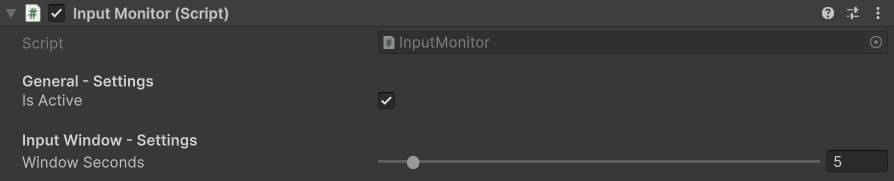
The InputMonitor settings.
Read the window in code
You can ask for the current numbers of any input:
using GUPS.AntiCheat.Core.Input;
using GUPS.AntiCheat.Monitor.Input;
using UnityEngine;
using UnityEngine.InputSystem;
using UnityEngine.InputSystem.LowLevel;

var monitor = AntiCheatMonitor.Instance.GetComponentInChildren<InputMonitor>();

// Presses are tracked per device, so pass the device you want to inspect.
InputId leftButton = InputId.MouseButton(MouseButton.Left, Mouse.current);

int clicksInWindow = monitor.GetPressCount(leftButton);
int peakClicksPerSecond = monitor.GetPeakPressesPerSecond(leftButton);
float averageClicksPerSecond = monitor.GetAveragePressesPerSecond(leftButton);

InputStatus spaceStatus = monitor.GetStatus(InputId.Key(Key.Space, Keyboard.current));

// Local multiplayer: each gamepad has its own statistics.
foreach (Gamepad gamepad in Gamepad.all)
{
    int peak = monitor.GetPeakPressesPerSecond(InputId.GamepadButton(GamepadButton.South, gamepad));
}
Read the status in code
You can also listen yourself. Subscribe returns an IDisposable. Dispose it when you want to stop.
using System;
using GUPS.AntiCheat.Core.Watch;
using GUPS.AntiCheat.Monitor.Input;
using UnityEngine;

public class InputStatusLogger : MonoBehaviour, IObserver<IWatchedSubject>
{
    private void Start()
    {
        var monitor = GetComponentInChildren<InputMonitor>();
        monitor.Subscribe(this);
    }

    public void OnNext(IWatchedSubject subject)
    {
        if (subject is InputStatus status)
        {
            Debug.Log($"{status.Input}: {status.PressCount} presses in {status.WindowSeconds}s, peak {status.PeakPressesPerSecond}/s");
        }
    }

    public void OnError(Exception error) { }
    public void OnCompleted() { }
}
Detect an auto clicker
To decide if a rate is too fast for a person, use the Input Cheating Detector. To limit presses in your own code, use ProtectedInput.