Protecting saved data (PlayerPrefs)
Goal: You will learn how to stop players from editing your save data, such as PlayerPrefs stored in the Windows registry or on their device.
The problem
PlayerPrefs are stored on the player's device. By default they are plain text, so they are easy to find and change.
On Windows that is the registry. On Android and iOS it is a preferences file. A cheater can set a score to 300 and unlock progress they never earned.
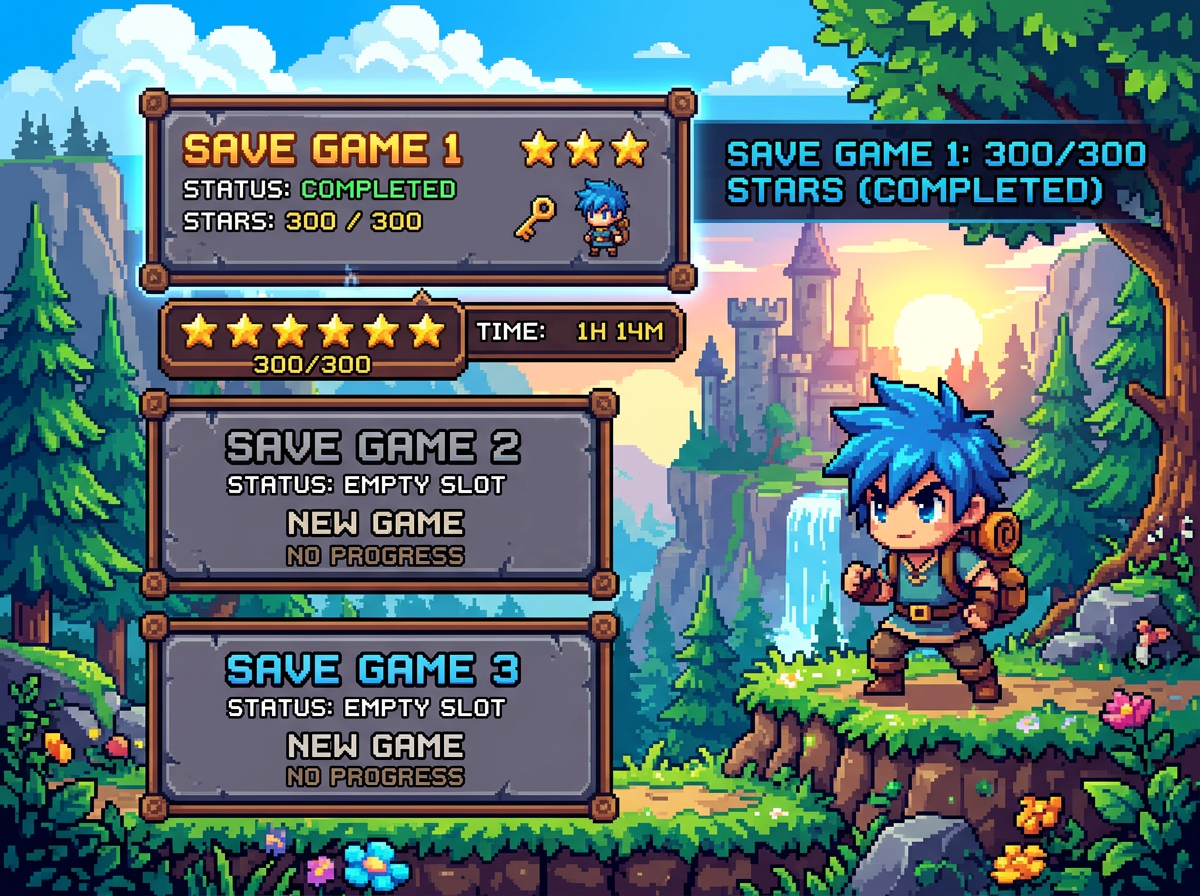
Image 1: Here you see a save game with a cheated score of 300 / 300 stars — progress that was never earned in normal play.
The solution
Replace Unity's PlayerPrefs with AntiCheat ProtectedPlayerPrefs, and enable hashing, encryption, integrity checks, and optional device binding in the AntiCheat project settings.
Step 1: Know where PlayerPrefs live
Unity stores PlayerPrefs in a place the player can open:
- Windows: the registry
- Android and iOS: a preferences file in the app data
The names and values are plain text, so they are easy to edit.
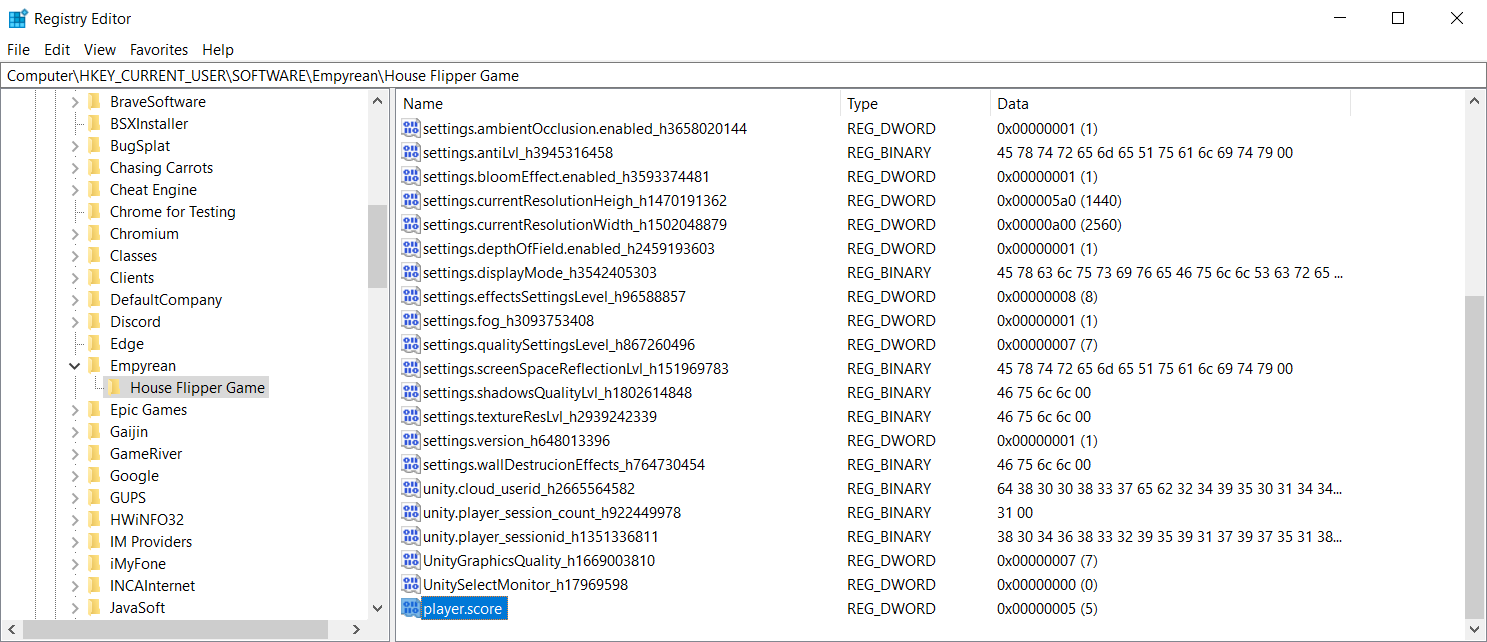
Image 2: The Windows registry. A plain player.score value is easy to read. A cheater can change it to 300 in the Registry Editor.
Notice that the key is fully readable (player.score) and the value is easy to change. Anyone can open the Registry Editor, double-click the entry, and give themselves a perfect score.
Step 2: Switch to ProtectedPlayerPrefs
AntiCheat provides ProtectedPlayerPrefs as a drop-in replacement for Unity's PlayerPrefs. The save location and method names stay the same, so in most cases you only need to change the class name. You can find it in the namespace GUPS.AntiCheat.Protected.Storage.Prefs, and it also supports many more data types than the Unity version.
Here is the plain, unprotected version:
// Before - plain Unity PlayerPrefs, stored readable on the device.
PlayerPrefs.SetInt("player.score", 10);
int score = PlayerPrefs.GetInt("player.score");
And here is the protected version:
using GUPS.AntiCheat.Protected.Storage.Prefs;

// After - same calls. Turn on Hash Key and set a Value Encryption Key
// in the project settings, or the save stays easy to read.
ProtectedPlayerPrefs.SetInt("player.score", 10);
int score = ProtectedPlayerPrefs.GetInt("player.score");
Step 3: Configure the PlayerPrefs settings
You can configure how the protection works under Project Settings -> GuardingPearSoftware -> AntiCheat -> Global -> PlayerPrefs - Settings.
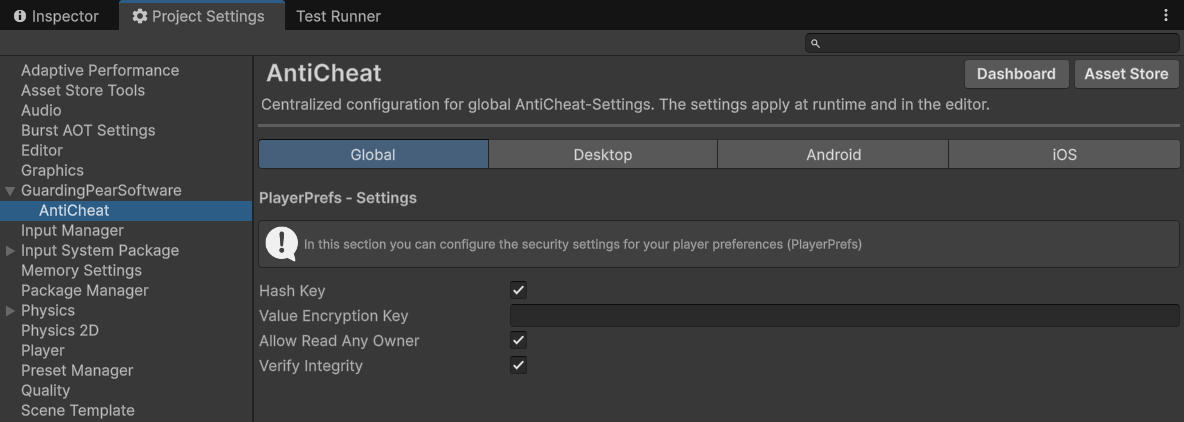
Image 3: Here you see the PlayerPrefs settings in the AntiCheat project settings.
The following settings are available:
- Hash Key: Stores the key as a hash instead of its readable name, so a cheater cannot simply search the registry for
player.score. - Value Encryption Key: The secret used to encrypt the stored value. If you leave it empty, values are stored unencrypted. The shipped settings leave it empty, so set one before you ship. If you change the key later, old saves can no longer be read.
- Allow Read Any Owner: When this is off, a save can be read only on the device that wrote it. That stops a player from copying someone else's save file.
- Verify Integrity: Stores a hash signature calculated from the data type, value, and owner. If a player edits the data by hand, the signature no longer matches and the change is detected as tampering.
Step 4: Pick how you use protected prefs
There are three ways to work with protected PlayerPrefs, so you can pick whichever fits your project.
Static, default location (ProtectedPlayerPrefs): This is the drop-in replacement. It offers all the usual Set* and Get* methods, plus a few extra ones.
ProtectedPlayerPrefs.SetInt("HighScore", 1337);
int score = ProtectedPlayerPrefs.GetInt("HighScore", 0);
ProtectedPlayerPrefs.Save();
Custom file location (ProtectedFileBasedPlayerPrefs): This uses the same API, but stores the data in a file instead of the default location. To change where the file is saved, set ProtectedFileBasedPlayerPrefs.FilePath (the default is Application.persistentDataPath).
Inspector-assignable prefs (ProtectedIntPref, ProtectedFloatPref, ...): If you prefer to set values in the inspector, use the typed pref wrappers. You assign the key and a default value in the inspector, and read or write the stored value through the Value property.
using GUPS.AntiCheat.Protected.Storage.Prefs;
using UnityEngine;

public class PlayerScore : MonoBehaviour
{
    // Assign the key ("player.score") and a default value in the inspector.
    public ProtectedIntPref score;

    public void AddScore(int amount)
    {
        score.Value += amount; // reads and writes ProtectedPlayerPrefs under the hood
    }
}
There are matching pref types for the other common data types too, such as ProtectedBoolPref, ProtectedStringPref, ProtectedVector2Pref, ProtectedVector3Pref, ProtectedVector4Pref, and ProtectedQuaternionPref.
The result
With Hash Key on and a Value Encryption Key set, the same save looks very different.
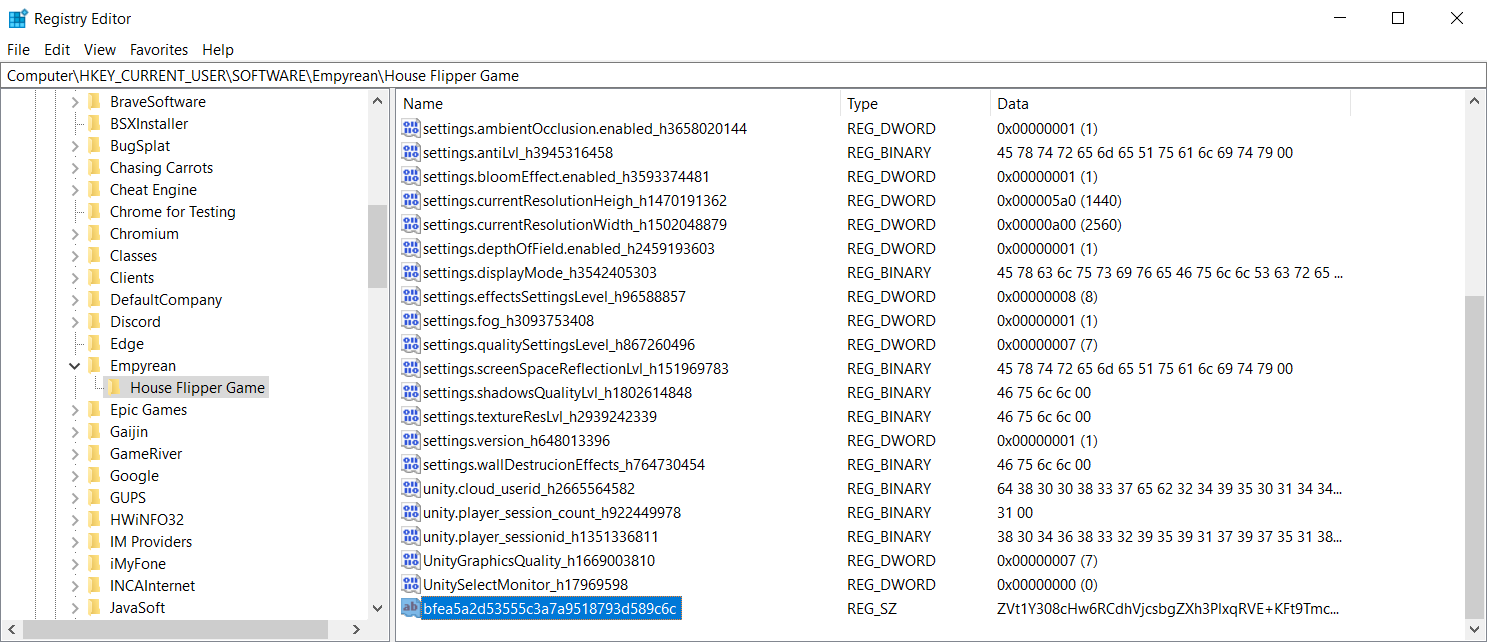
Image 4: Here you see the same registry after protection. The key name is now a hash and the value is encrypted, so player.score can no longer be found or edited.
The readable key is gone, replaced by a hash, and the value is stored as an encrypted string. A cheater can no longer tell which entry holds the score, and even if they guess, they cannot change it to a valid value.
Important: never store secrets
Warning
Protection raises the bar for cheaters, but anything stored on the client can eventually be accessed or reverse-engineered. Never store real secrets, such as server API keys, passwords, or unlock codes, in PlayerPrefs, protected or not. Use protected PlayerPrefs to make cheating hard, not to hold sensitive data.
Next steps
- Protecting against speedhacks — stop players from accelerating the game with Cheat Engine Speedhack.
- Protecting memory against Cheat Engine — if cheaters edit live values in memory instead of save data.
- Protected PlayerPrefs — full list of supported types and methods.