Universal - Game Time - Monitor (Pro)
Many games use Time.deltaTime for movement and cooldowns. A speed hack can make that clock run too fast, too slow, or stop. AntiCheat measures the real speed of that clock.
Walkthrough: Protecting against speedhacks.
Monitor
GameTimeMonitor (namespace GUPS.AntiCheat.Monitor.Time) compares Unity's clock with real time. It sends a GameTimeStatus to its listeners.
Why not use another clock in the game
A speed hack such as Cheat Engine Speedhack does not edit your scripts. It scales the clocks the game can read. Then UnityEngine.Time, DateTime.UtcNow, Stopwatch, and Environment.TickCount all lie by the same amount. Comparing two of them shows nothing.
This monitor uses a real-time clock that those tools cannot easily fake. About every 100 ms it compares that clock with Time.realtimeSinceStartupAsDouble. Unity's real-time clock is used on purpose. It is not limited by Time.maximumDeltaTime. It is not changed by Time.timeScale. A hitch, a scene load, or slow motion does not look like a cheat.
Status
The monitor sends a GameTimeStatus:
public struct GameTimeStatus : IWatchedSubject
{
    // Classified deviation of Unity's clock from real time.
    public ETimeDeviation Deviation { get; }

    // Elapsed Unity time divided by elapsed real time over the monitor window. 1.0 = real speed, 2.0 = twice as fast.
    public float SpeedFactor { get; }
}
- Deviation: How
SpeedFactorcompares with the tolerance you set. - SpeedFactor: How fast Unity's clock is running.
1is normal.2is twice as fast. The detector uses this to correct protected time.
The monitor does not report Time.fixedDeltaTime. The detector checks the physics step itself.
Deviation uses this enum:
public enum ETimeDeviation : byte
{
    None = 0,       // No deviation detected.
    Stopped = 1,    // Time has effectively stopped.
    SlowedDown = 2, // Time is running slower than expected.
    SpeedUp = 3     // Time is running faster than expected.
}
Lifecycle and timing
- The reference clock starts in
OnStart. It stops inOnStopandOnDestroy. It runs in the background. It does not keep the game process alive. - The monitor looks at the reference every frame in
OnUpdate. It only stores a sample when the reference moved since the last frame. Samples arrive about every 100 ms. Each sample is a pair: Unity time moved, and real time moved. - The last 10 samples are kept. That is about one second. Once the window is full, every new sample sends a
GameTimeStatus.SpeedFactoris Unity time divided by real time. Listeners get about ten reports per second. The window keeps sliding. It is not cleared after a report. - A difference is reported when
SpeedFactoris far enough from1. How far is the tolerance.Stoppedis reported when Unity's clock did not move at all. - If the reference clock does not tick for 1000 rendered frames, but Unity's clock keeps moving, the monitor reports
SpeedUpright away. It does not wait for the window. Frames are counted instead of Unity time. A speed hack does not add frames, so it cannot fake this path. - The window resets when the monitor starts, when it resumes, when the app gets focus, and when it leaves pause. Unity's clock may or may not move while the app is in the background. Samples from before and after that gap are not compared.
Configuration
There is one Inspector field:
- Tolerance Factor (
toleranceFactor, range 0.05 to 1, default 0.25, a good range is 0.15 to 0.3): How far Unity's speed may drift from real time.0.25reports 1.25x and faster, or 0.75x and slower. The real-time clock can overshoot by a few percent. That makes Unity look a little fast. Do not go below0.1.
What the monitor detects and what it does not
- Detects speed hacks that change the clocks the game can read. Cheat Engine Speedhack works this way. It also detects a memory edit of Unity's clock, and a frozen reference clock.
- Does not detect changes to
Time.timeScale. Pause and slow motion are normal. A protectedtimeScaleis not part of this version. - Does not detect a tool that slows the whole computer, not just the game. The reference clock slows with it.
Supported platforms
The monitor works on every platform. WebGL has no background thread, so the reference falls back to DateTime.UtcNow. A speed hack that also changes the browser clock can fool that fallback. Protection is weaker there.
Requirements
There are no extra requirements.
How to use
Add GameTimeMonitor as a child of the AntiCheat-Monitor. Pair it with GameTimeCheatingDetector.
Add the component
Add GameTimeMonitor from GUPS.AntiCheat.Monitor.Time. A child of the monitor is the best place.
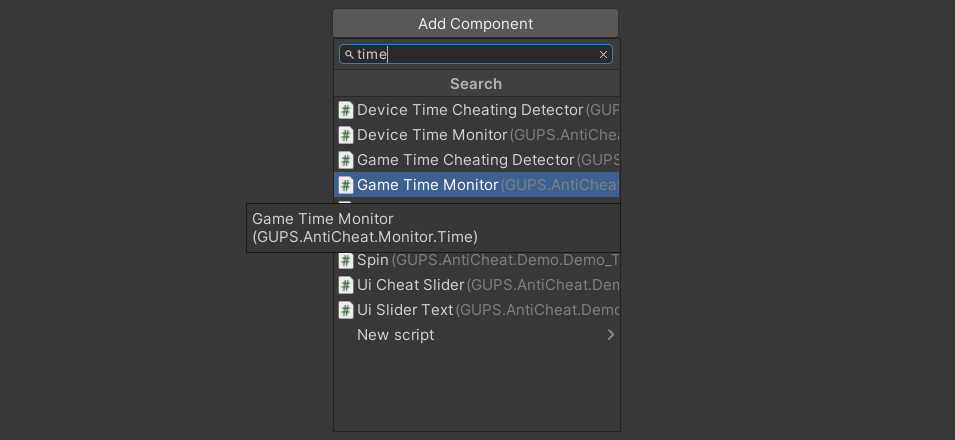
Add the GameTimeMonitor component.
Read the status in code
You can also listen yourself. Subscribe returns an IDisposable. Dispose it when you want to stop.
using System;
using GUPS.AntiCheat.Core.Watch;
using GUPS.AntiCheat.Monitor.Time;
using UnityEngine;

public class GameTimeStatusLogger : MonoBehaviour, IObserver<IWatchedSubject>
{
    private void Start()
    {
        var monitor = GetComponentInChildren<GameTimeMonitor>();
        monitor.Subscribe(this);
    }

    public void OnNext(IWatchedSubject subject)
    {
        if (subject is GameTimeStatus status)
        {
            Debug.Log($"Deviation: {status.Deviation}, Speed: {status.SpeedFactor:0.00}x");
        }
    }

    public void OnError(Exception error) { }
    public void OnCompleted() { }
}
Detect a speed hack
To decide if the report is cheating, use the Game Time Cheating Detector.