Getting started with AntiCheat
Goal: You will learn how to add AntiCheat to your project and get the AntiCheat-Monitor running in your scene. This is the foundation every other guide builds on.
AntiCheat is built on four pillars: Protection, Monitoring, Detection, and Punishment. At the center of the system is the AntiCheat-Monitor. It coordinates these pillars, observes your game at runtime, and reacts when it detects tampering. Adding it to your scene is the first step, and it only takes a moment.
Step 1: Find the AntiCheat-Monitor prefab
Import AntiCheat from the Unity Asset Store into your project. After the import, all files are located under Assets/GUPS/AntiCheat. For this step, you only need the prepared prefab, which you can find at Assets/GUPS/AntiCheat/Resources/Prefabs.
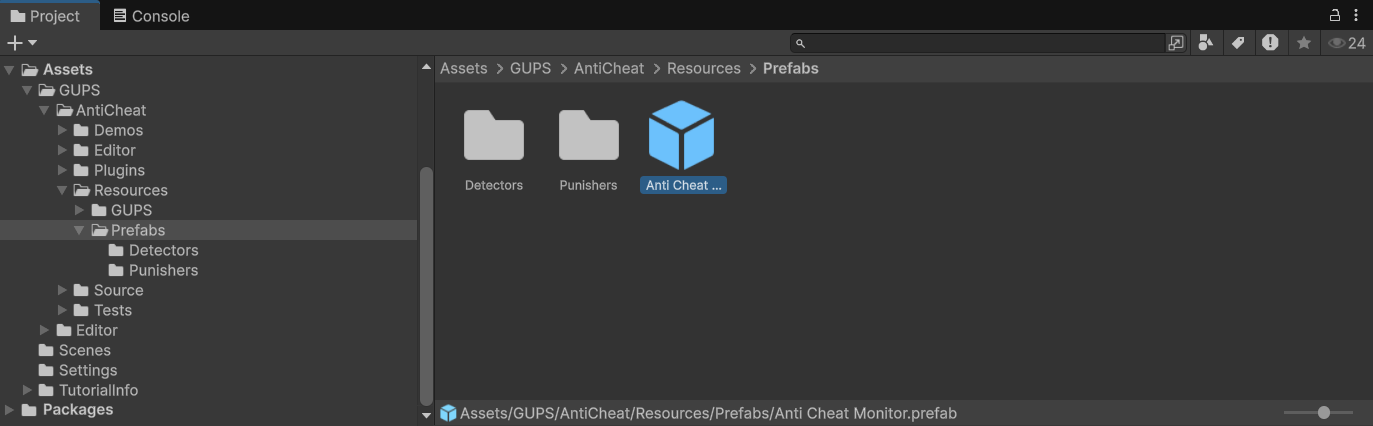
Image 1: Here you see the AntiCheat project files. The "Anti Cheat Monitor" prefab is located in Assets/GUPS/AntiCheat/Resources/Prefabs, alongside the prepared Detectors and Punishers.
Step 2: Add it to your scene
To add the monitor, drag and drop the "Anti Cheat Monitor" prefab into your first scene.
The monitor is a persistent singleton. This means it remains active across scene loads, and only one instance ever exists. You therefore only need to add it once, in the scene your game starts with, and it continues to protect your game in every other scene.
Step 3: Understand what is inside the prefab
The prefab is organized into a few child objects. The following sections describe what each part is responsible for.
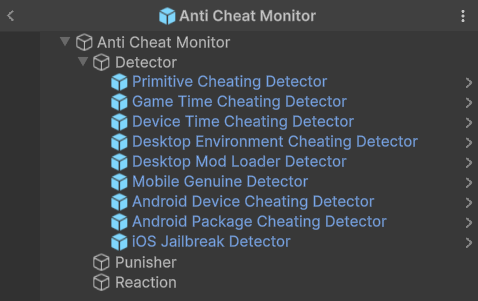
Image 2: Here you see the structure of the AntiCheat-Monitor prefab, with its Detector, Punisher and Reaction child objects.
- Threat score: Each detector report adds to one score. A report that is more likely a mistake adds less. A higher score means AntiCheat is more sure.
- Monitors: They watch the game or the device and only report what they measure.
- Detectors: They decide if a measurement looks like cheating, then raise the score.
- Punishers: They run when the score passes their limit. Built-in ones can close the game, lower the frame rate, or flip the camera. Each has its own limit.
- Your own reaction: Use the
Reactionobject for a warning, a kick, or an account flag. You can hook that up in the Inspector or in code.
Next steps
The prefab already includes the usual detectors, so it is ready to use. The debugger is not on the prefab. Add that component yourself if you need it.
How to start covers install and the monitor. Android, iOS, and desktop checks have their own guides.
Continue with the first scenario guide: Protecting memory against Cheat Engine.
Or pick another problem from the Guides overview.