System info
The system window tells you about the device that is running the game. It reads Unity's device info once at the start and shows it for the rest of the session.
It is most useful while you test on real hardware. A graph that looks fine on your PC can look bad on a phone, and with the system window next to the graphs you always know which device you are looking at.
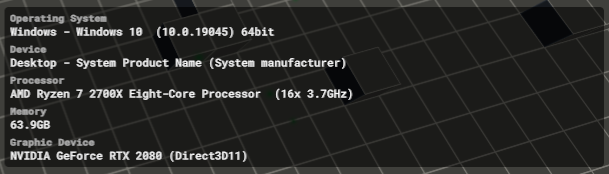
Each entry has a small gray title and the value underneath.
What each line means
You will see six lines:
- Operating system is the OS family and the full version string. That helps when a bug only happens on one OS.
- Device is the device type and the model, such as a desktop PC or a specific phone. On Windows, the model comes from what the mainboard reports to the system, and some boards only fill in placeholders. That is why the screenshot above reads
System Product Name (System manufacturer)instead of a real name. - Processor is the CPU name, the core count, and the speed in GHz.
- Memory is the system RAM, shown in GB.
- Graphics device is the GPU name and the graphics API, such as Direct3D or Vulkan.
- Graphics memory is the memory size reported for that GPU, shown in GB.
These lines do not update every frame, because hardware does not change while you play. If you resize the game window, the Tiny monitor is the place that shows the new resolution.
Open it
Create it from:
GameObject > GuardingPearSoftware > EasyPerformanceMonitor > UI Toolkit > SystemMonitor
Press F2 to show or hide it. Change that key on the window if your game already uses F2.
The menu places the window at the bottom right. You can move it with Monitor Position, Element Width, Element Height, and the offsets. The Performance graphs page describes those layout settings.
Save a copy
Turn on Save To File if you want the list on disk. The window writes a text file when it starts. Unity stores it in the app's persistent data folder, and the file name includes the time the game started, so each session gets its own file.
That file comes in handy when a tester sends you a build and you need the hardware details later. Nobody has to photograph the screen.