Performance graphs
The performance window is the main window of the tool. It measures the numbers that decide whether your game feels smooth, and it draws them while you play.
Every number gets its own card. A card shows a title, the current value, a live graph, and the lowest and highest values from the recent past.
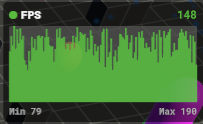
An FPS card. The title sits top left and the current value (148) top right. The graph fills the middle, and the lowest and highest values from the recent history (Min 79, Max 190) sit underneath. The card is green because the frame rate is above the limit you set.
You create this window from:
GameObject > GuardingPearSoftware > EasyPerformanceMonitor > UI Toolkit > PerformanceMonitor
Press F1 to show or hide it. The menu version starts with three cards: FPS, Frame Time, and Memory.
The FPS card
FPS stands for frames per second, and a higher number means a smoother game. This card is the best place to learn how every card is built, because all of them follow the same pattern.
Open the performance window in the Hierarchy and select the FPS child. It has two scripts:
- Provider.
FpsProvidermeasures the frame rate. It only does the counting and does not draw anything. - Renderer. Rated Graph Renderer draws the card. It reads the provider and paints the graph and the numbers.
Every other card works the same way: one child object, one or more providers, and one renderer.
Provider settings
Select the FPS child and look at FpsProvider.
- Fetch Interval is how often it takes a sample, in seconds. A smaller number updates faster, so raise it if you only need a calm average.
- History Size is how many recent samples it keeps. Those samples become the average, the lowest, and the highest. A bigger history reacts more slowly and smooths out short spikes.
- Store Values in CSV File writes every sample to a spreadsheet file on the device, which is useful for a test session you want to study later. Unity saves the file in the app's persistent data folder, and the file name includes the time the game started and the name of the provider.
Why the graph changes color
The FPS renderer is a rated graph. Green means the frame rate is fine, yellow is a warning, and red means trouble.
High value is is set to Good, because a higher FPS is better. Thresholds for platform lets you set the limits separately for Desktop, Mobile, and Console. A phone and a PC do not share the same idea of a good frame rate, so their limits should not be the same either.
A common start on desktop is green above 60 and red below 30. On mobile and console, many games use 45 and 30. Change these to match the frame rate you are aiming for.
Frame Time
The Frame Time card puts CPU time and GPU time on one graph. Both are in milliseconds, and lower is better.
CPU time is how long your scripts and Unity's player loop took. GPU time is how long the graphics card took. When the game hitches, this card shows you which of the two spiked.
The graph is centered, which means each line sits on its own average and spikes go up and down from the middle. That makes a single bad frame easy to spot. The legend names each line. Percentages are turned off here, because the two times are not shares of one total.
Memory
The Memory card draws three values:
- Allocated memory is memory Unity is using, including loaded assets such as textures and audio.
- Reserved memory is memory Unity is holding for later use.
- Script memory is the managed memory your C# code is using.
These numbers start out in bytes. Scale Values is on, so the card shows them as KB, MB, or GB, which is a lot easier to read.
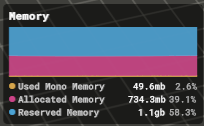
A Memory card using the Stacked layout. Each value is a band, and the legend shows the size of each one next to its share of the total in percent.
The legend can show each value's share of the total. Leave Show Percentages on if you want that, or turn it off if you only want the raw size.
How any graph can look
Every graph renderer shares these choices. You change them on the renderer, not on the provider.
- Render as can be Line, Bar, or Centered. A line is the usual chart, a bar uses blocks, and centered sits on the average so spikes stand out. Frame Time uses centered.
- Center Amplitude shows up in centered mode. Raise it when the spikes look too flat, and lower it when they fill the whole card.
- Is Smooth bends the line between points for a softer chart. Leave it off if you want every sample to stay sharp.
- Graph Values is how many points the chart draws. More points show a longer history, while fewer points make recent changes easier to see.
- Scale Values converts big numbers, such as bytes, into KB, MB, or GB. Leave it off for FPS and for times in milliseconds.
- Rendering Pattern sets the text.
0.0shows one decimal and0shows a whole number. Add#when you want the unit too, as in0.0#, which can read16.7 ms. The0stands for the number and the#for the unit. - Title is the name in the card header. Leave it empty and the card uses the provider's name.
Pick a color style
Each card has one renderer. These are the three you will use most.
- Rated Graph Renderer uses green, yellow, and red. Set High value is to Good when a bigger number is better, like FPS, or to Bad when a smaller number is better, like frame time or ping. Then set Thresholds for platform for Desktop, Mobile, and Console. You can also change Good Color, Warning Color, and Critical Color.
- Colored Graph Renderer uses one solid color that you pick in the Inspector. Use it when you do not want a good-or-bad rating.
- Multi Graph Renderer draws one line per provider on the same object, so put the providers and this one renderer on the same child. Layout can be Overlay (lines on top of each other), Side By Side (each line in its own lane), or Stacked (each sample as a share of the column). Show Percentages adds each share to the legend, and you give each provider its own color.
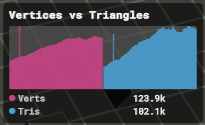
A Multi Graph Renderer with the Side By Side layout. Vertices get the left lane and triangles the right one, so you can compare the two shapes without them overlapping.
Place the window
Select the window object in the Hierarchy. These settings move the whole group of cards.
- Show On Start shows this window when you press play. Turn it off if the window should wait for its key.
- The toggle key opens and closes the window. Projects on the new Input System use Toggle Action, and projects on the old input system use Toggle Key. On the old system you can also require Control, Shift, or Alt. If both input systems are enabled, the new one is used, so one press toggles once.
- Monitor Position picks a side of the screen: Top, Bottom, a corner, or Free. Top and Bottom lay the cards out in a row, and the corners lay them out in a column. Cards wrap onto the next row or column when they run out of room. Free leaves the group where the offsets put it.
- Element Width, Element Height, and Element Spacing set the card size and the gap between cards. Raise the width if the numbers feel cramped.
- Initial Offset X and Initial Offset Y nudge the whole group away from the edge.
- Font is optional. Leave it empty to use Unity's built-in font, or assign a monospace font if you want the value columns to line up.
- Sorting Order keeps the monitor above your game UI. The default is high enough for most games, but you can raise it if your own UI still covers the cards.
The cards never catch clicks, so you can still use the game underneath them.