Legacy windows (uGUI)
The legacy windows (uGUI) are still in the package. They use Unity's classic UI, often called uGUI. The data is the same, only the drawing uses the older path.
Use them if a scene is already built this way, or if you prefer working with a Canvas. For a new scene, start with the UI Toolkit windows, which is what the rest of this manual is written for.
Where to find them
The menu path is:
GameObject > GuardingPearSoftware > EasyPerformanceMonitor > Legacy
You get the same four windows: performance, tiny, system, and log. Each one also has a World Space item. World space here uses a Canvas in the scene, which you can place like any other object.
The prefabs are in:
Assets/GUPS/EasyPerformanceMonitor/Prefabs/Legacy
Extra cards are in Prefabs/Legacy/Components. The names match the UI Toolkit components: FPS, CPU, GPU, memory, ping, and the rest.
The providers are the same scripts. FpsProvider does not care which window draws it, only the renderer changes.
How a card is built
On these windows, a card has three parts. UI Toolkit folds the graph and the text into one renderer, while the classic windows keep them apart. That lets you swap the chart without touching the numbers, or the other way around.
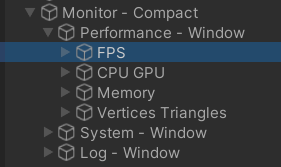
The compact monitor in the Hierarchy. Each card, such as FPS or Memory, is one child of the performance window.
- Provider. This measures the number. For FPS, that script is
FpsProvider.
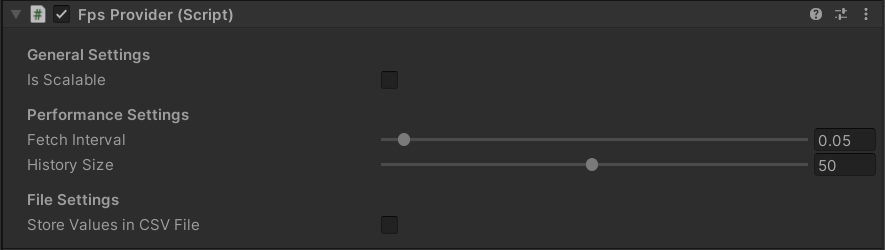
Fetch Interval is how often it samples. History Size is how many samples become the average, the lowest, and the highest. Store Values in CSV File writes those samples to a spreadsheet file on the device.
- Graph renderer. This draws the chart. A rated graph changes color based on your limits, and a colored graph uses one color. A graph with several providers can compare them, such as CPU and GPU time side by side.
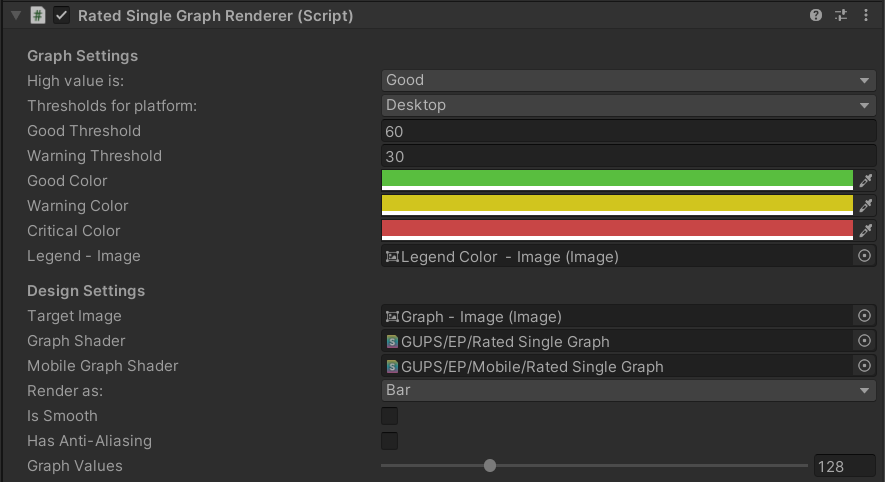
The rated graph settings for FPS. Desktop is selected in the platform dropdown, so the 60 and 30 below it are the desktop limits. The three colors are used from good to critical.
Render as can be Line, Bar, or Centered, the same as on the UI Toolkit graphs. Set High value is to Good or Bad, and set the thresholds for Desktop, Mobile, and Console.
- Text renderer. This prints the average, the lowest, and the highest. It comes in rated, colored, and normalized versions, so the text can follow the same color rules as the graph.

Scale Values turns bytes into MB or GB. Rendering Pattern sets the text, and 0.0# shows one decimal and the unit. The 0 stands for the number and the # for the unit.
Keys and the root object
The default keys match the new windows: F1 for performance and tiny, F2 for system info, and F3 for the log. Change a key in the Inspector if two windows share it, or if your game already uses that key.
A prefab still has the Monitor root. Development build only, Show on start, and Persist across scenes work the same way as on the UI Toolkit prefabs, and the Get started page explains those three settings.