Get started
When you add the asset to your project, you will find these files and folders:
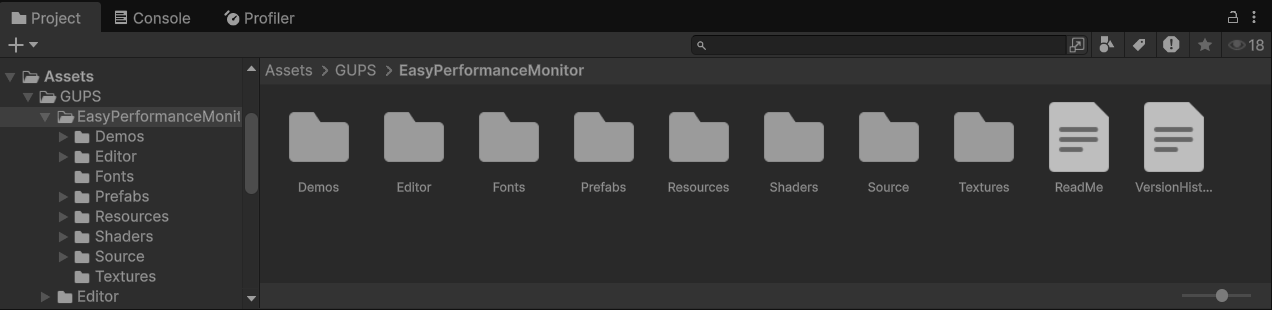
- Demos holds sample scenes. Open one and press play.
- Editor holds the Inspector tools.
- Fonts holds the typefaces the windows use.
- Prefabs holds ready-made monitors you can drag into a scene.
- Resources holds the theme the windows load at runtime.
- Shaders draw the classic graph windows (uGUI).
- Source is the code that runs the monitor.
- Textures holds a small image the classic windows (uGUI) use.
- ReadMe.md is a short introduction.
- VersionHistory.md lists what changed in each release.
The demos are the quickest way to see the windows in action and get a feel for what the tool can do.
See it in a demo first
Three demos ship with the asset. Open one and press play, and you will see what the windows look like right away.
- Demo A uses the compact monitor.
- Demo B uses the full monitor.
- Demo C uses the tiny monitor, which is the one to pick when you want the overlay as small as possible.
The scenes at each demo's root use the UI Toolkit windows, which is Unity's modern UI. Older scenes with the classic uGUI windows sit in a Legacy folder inside each demo.
Drag in a prefab
The UI Toolkit prefabs live here:
Assets/GUPS/EasyPerformanceMonitor/Prefabs/UIToolkit
Drag one into your first scene and pick the layout that fits your game:
- Monitor is the full set of windows. The cards sit along the top and scale with the screen width, which works well on PC and console.
- Monitor - Compact takes less room and scales with the screen height. Use it on phones, where width is tight.
- Monitor - Tiny is a single small panel for when you want the key numbers and almost no overlay.
- Monitor - Minimalistic - Variant 1 and Variant 2 pack more numbers into a smaller space, so you get detail without the full cards.
- The VR folder has a full monitor and a compact monitor that you can place in the world.
Extra graph cards live in Prefabs/UIToolkit/Components. Drag one onto the performance window whenever you want another predefined graph.
Prefab settings
Select the Monitor object in the Hierarchy. The Inspector shows three settings worth knowing about.
- Development build only is on by default. The monitor shows up in the Editor and in development builds, and a release build hides it. Leave this on unless you really want players to see the overlay.
- Show on start is on by default, so the windows appear as soon as you press play. Turn it off if you want them hidden until you press a key.
- Persist across scenes is on by default. The monitor stays alive when you load a new scene, and if that scene has its own monitor, the extra one is removed so the first one keeps running. Turn this off if every scene should manage its own monitor.
Add a window from the menu
In the Unity menu bar, open:
GameObject > GuardingPearSoftware > EasyPerformanceMonitor > UI Toolkit
Then pick the window you want:
- PerformanceMonitor shows FPS, frame time, and memory. Press F1 to show or hide it.
- SystemMonitor shows the device. Press F2.
- LogMonitor shows Unity messages. Press F3.
- TinyMonitor is the small panel. It also uses F1.
Each item also has a (World Space) version that sits in the 3D scene. The AR and VR page explains it.
Clicks pass through
The windows do not block game input. Clicks and taps go through to your UI and your world, so you can play normally with the monitor open.