Add a number
The performance window can track a lot more than FPS, frame time, and memory. This page lists the numbers that are already built in, and the ready-made cards you can drop in.
A card is always two parts on one child object of the performance window: a provider that measures the number, and a renderer that draws it. The Performance graphs page walks through that with the FPS card.
If you want a number from your own game, or a provider that has no prefab, read Custom data.
Drop in a ready card
Ready cards live here:
Assets/GUPS/EasyPerformanceMonitor/Prefabs/UIToolkit/Components
Drag one onto the performance window in the Hierarchy, so it becomes a child of that window, and press play. The new card shows up next to the others.
The folder includes:
- FPS - Component for frames per second.
- CPU - Component for CPU frame time.
- GPU - Component for GPU frame time.
- CPU vs GPU - Component for both times on one card.
- Memory - Component for allocated, reserved, and script memory.
- RAM - Component for allocated memory on a rated graph.
- Triangles - Component and Vertices - Component, plus Vertices vs Triangles - Component for both on one card.
- Download vs Upload - Component for network speed.
- Ping - Component for network lag.
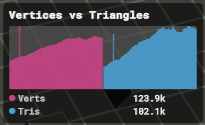
The Vertices vs Triangles component after you drop it in. Two providers share one card, each one gets its own lane and color, and the legend lists both counts.
The classic UI has the same set under Prefabs/Legacy/Components. Use that folder only with the classic windows.
What each number tells you
These providers are already in the tool. Add the script to a child, or use a component prefab when one exists.
- FPS is frames per second. Watch it for hitches and for a frame rate that settles too low.
- CPU is CPU frame time in milliseconds. A spike here means scripts, physics, or Unity's player loop got expensive.
- GPU is GPU frame time in milliseconds. A spike here means drawing the frame got expensive.
- Allocated memory is memory Unity is using, including loaded assets. If it keeps climbing, a scene is probably leaking assets.
- Reserved memory is memory Unity is holding in reserve, and it is often higher than the allocated amount.
- Script memory is managed C# memory. Keep an eye on it if your own code allocates a lot each frame.
- Available memory is memory the app can still use. On tight devices, a drop toward zero is a warning sign.
- GPU memory is memory on the graphics card. Available GPU memory is the room you have left, and allocated GPU memory is what Unity's graphics driver is using. The allocated reading works in the Editor and in development builds.
- Draw calls count how many times the GPU is asked to draw. Fewer is usually cheaper.
- Triangles and vertices count the geometry in the frame. A sudden jump often means a heavy mesh came into view.
- Download and upload are your network speed. They help when a stall might be the connection instead of the frame.
- Ping is the round trip to a host, in milliseconds. There is a full section on it below.
- Unity Profiler reads one counter you pick. In the Inspector, choose a Profiler Category and a Profiler Status. This is the way to watch a Unity stat that has no dedicated card.
- GameObject Tag Count counts objects that use the Tag you set, so you can watch spawned enemies, bullets, or anything else you tagged.
Unity Profiler and GameObject Tag Count have no prefab. The Custom data page shows how to add those scripts by hand.
Every provider has Fetch Interval, History Size, and Store Values in CSV File. The Performance graphs page explains those settings.
Some numbers only work on certain devices. On the others, the performance window hides that card instead of showing an empty graph.
Ping
Ping is the extra card most people add, because lag makes a game feel bad even when FPS is high. Use the Ping - Component prefab, or add the PingProvider script to a child and put a renderer next to it.
Select the provider in the Inspector.
- Host / URL is the address to ping.
google.comis the default. You can type a host name or a full address such ashttps://example.com/path, but only the host part is used. - Ping Interval is the number of seconds between pings. The graph can update faster than this, because it reuses the last result instead of sending a ping on every sample.
- Timeout (ms) is how long to wait for a reply. If the host does not answer, the card shows this timeout as the value, so the graph spikes and a dead connection is obvious instead of hiding behind the last good reading.
Lower is better, so on a rated renderer set High value is to Bad. On a PC, yellow around 50 ms and red around 100 ms is a reasonable start. On mobile and console, try 80 ms and 150 ms, and then adjust the limits to what your game needs.
Ping runs on a background thread, so your frame rate stays smooth while it waits for the network.
Ping works on PC, mobile, and consoles. WebGL cannot send this kind of ping, so the card hides itself there.