Error Stack Window
This window lets you deobfuscate stack traces when you want to know the original class and method names behind an obfuscated stack trace. This page explains how to use it and provides step-by-step instructions for turning obfuscated error messages back into readable form.
Understanding the Problem
One side effect of obfuscation is the difficulty of debugging obfuscated code. User-reported exceptions usually contain obfuscated method and class names, making it hard to trace the stack back to the source code.
GuardingPearSoftware's Obfuscator addresses this issue by generating a detailed mapping of obfuscated entities and their original names.
Step 1: Enable Mapping Generation
Before you can deobfuscate stack traces, you need to enable mapping generation in the Obfuscator settings:
- Open Project Settings in Unity.
- Navigate to GuardingPearSoftware → Obfuscator.
- Go to the Optional tab and find the Renaming Component.
- Enable the mapping generation option.
- Set the output path where the mapping file will be saved.
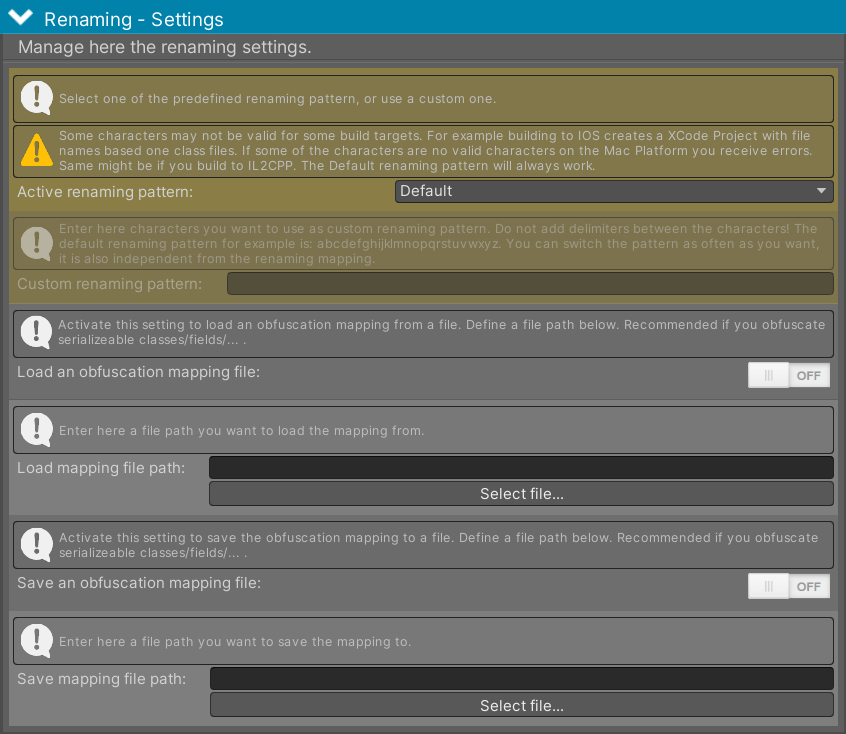 Figure 1 - Activate the saving of the renaming mapping.
Step 2: Build with Mapping Enabled
When you build your game with the Obfuscator activated and renaming mapping enabled, a JSON-based mapping file will be created at the location you've selected. This file contains the relationships between original and obfuscated names.
Step 3: Access the Deobfuscation Tool
To load the mapping and use it for deobfuscation:
- Open the Unity Editor.
- Navigate to Window → GuardingPearSoftware → Obfuscator → ErrorStack.
- The "Error Stack - Obfuscator" window will open.
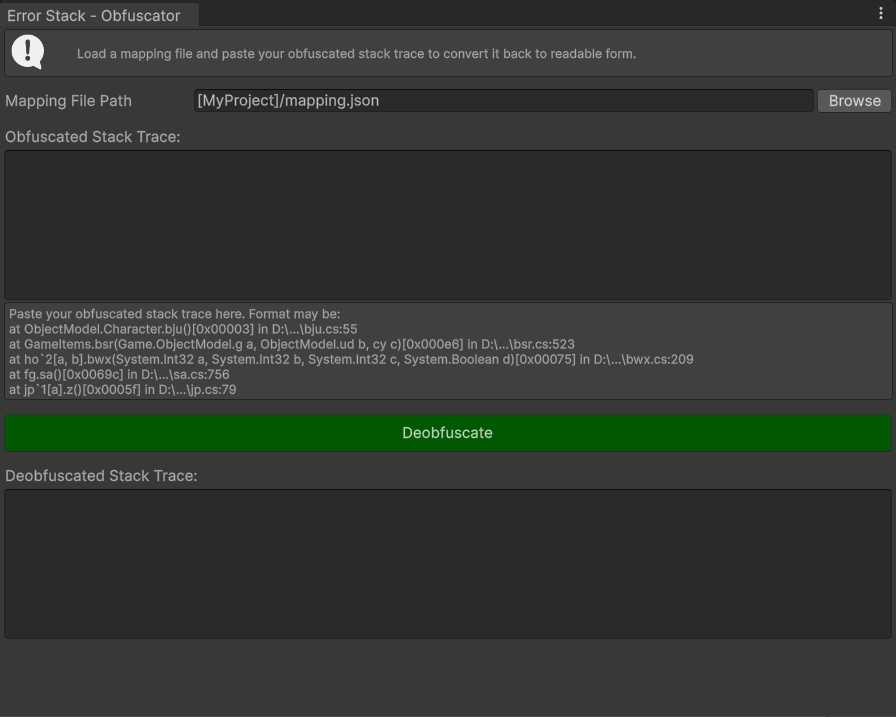 Figure 2 - The stack trace deobfuscation tool.
Step 4: Using the Deobfuscation Interface
Loading the Mapping File
- Mapping File Path: Enter the full path to your mapping JSON file, or click "Browse" to select it.
- The window tries to prefill this path from the Optional -> Renaming settings. It first uses the save mapping path. If that is empty, it uses the load mapping path.
- The mapping file is typically named something like
obfuscation_mapping.json.
Entering the Stack Trace
- StackTrace: Paste your obfuscated stack trace into the large text area.
- The tool expects stack traces in the standard format:
at ObjectModel.Character.bju()[0x00003] in D:\...\bju.cs:55
at GameItems.bsr(Game.ObjectModel.g a, ObjectModel.ud b, cy c)[0x000e6] in D:\...\bsr.cs:523
at ho`2[a, b].bwx(System.Int32 a, System.Int32 b, System.Int32 c, System.Boolean d)[0x00075] in D:\...\bwx.cs:209
Processing the Stack Trace
- Click the "Deobfuscate" button.
- The deobfuscated result will appear in the "Deobfuscated StackTrace" section below.
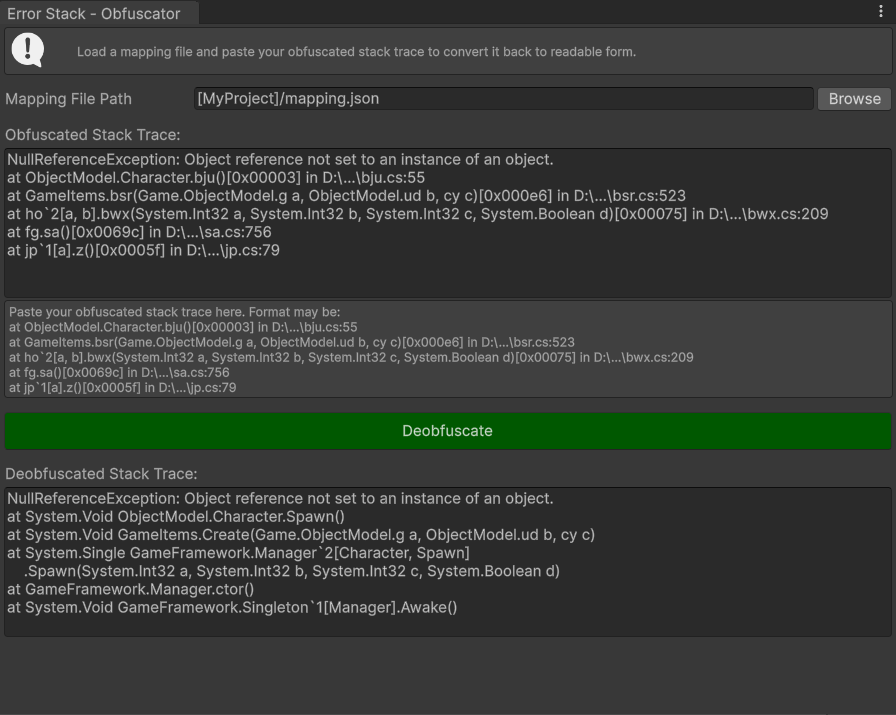 Figure 3 - Deobfuscated stack trace.
Example Workflow
- Enable mapping in Project Settings → GuardingPearSoftware → Obfuscator → Optional tab.
- Build your project with obfuscation enabled.
- Collect the mapping file from your specified output location.
- When you receive an obfuscated error report from users:
- Open the ErrorStack window.
- Load your mapping file.
- Paste the obfuscated stack trace.
- Click "Deobfuscate".
- Get readable class and method names for debugging.
Supported Stack Trace Formats
The tool supports standard Unity stack trace formats, including:
- Method calls with parameters
- Generic types and methods
- Nested classes
- File paths and line numbers (preserved in the output)
Important Notes
- Keep your mapping files: Store mapping files alongside your builds for future debugging.
- Version matching: Use the correct mapping file that corresponds to the specific build version.
- File security: Mapping files contain your original code structure – store them securely.
- Multiple mappings: Different builds require different mapping files.
- More help: See the Troubleshooting page for log and support guidance.
Troubleshooting
- "No valid mapping" error: Verify the mapping file path and make sure the file is a valid JSON file.
- Incomplete deobfuscation: Some names may not have been obfuscated and will remain unchanged.
- File not found: Check that the mapping file exists at the specified path.
- Parsing errors: Make sure the stack trace format matches the expected Unity format.