Log
The log window puts the Unity Console inside your running game, so you see messages, warnings, and errors as they happen.
This matters most on a device. On a phone or a console there is no Editor, so a red error that would show up in the Editor never reaches you. With the log open, the message appears right on the device, together with its stack trace.
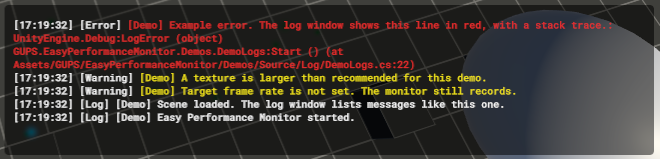
The red error at the top includes its stack trace, which tells you the method and the file the error came from. The two yellow lines are warnings, and the white lines are normal messages.
What a line looks like
Each line starts with the time, then the kind of message.
- A normal message stays white. These are your own
Debug.Lognotes. - A warning is yellow. Unity wants you to notice these, but the game can keep running.
- An error or exception is red, and the line includes the stack trace so you can see where it was raised.
Very long lines are cut off so one message cannot fill the whole window. The newest line is added at the top and older lines move down.
Open it
Create it from:
GameObject > GuardingPearSoftware > EasyPerformanceMonitor > UI Toolkit > LogMonitor
Press F3 to show or hide it. The menu places the window at the bottom left and gives it a wide panel so a stack trace can wrap.
You can resize it with Element Width and Element Height. A short height shows fewer lines at once, but the older lines stay in the list until they fall off the end.
Clicks pass through this window too, so you can keep playing while you read an error.
Settings
Select the log window in the Hierarchy.
- Log Level chooses what you see.
2is the default and shows everything.1hides normal messages and keeps warnings and errors, and0shows only errors. Lower it when your own logs get noisy and you only care about failures. - Log Max Lines is how many lines stay on screen. The range is 1 to 100, and the default is 15. When the list is full, the oldest line drops off. Raise it if you need more history during a long play session.
- Save To File writes each new line to a text file on the device. Unity stores it in the app's persistent data folder, and the file name includes the time the game started. Turn this on when a tester will send the log back to you, or when an error happens too fast to read.
Show On Start shows the log when you press play. Some people hide it until F3, so the screen stays clear until something breaks.