Desktop - Debugger - Detector (Pro)
A debugger can pause the game, read memory, and change values. There are two kinds. A user-mode debugger is attached to your game, such as Visual Studio, dnSpy, or x64dbg. A kernel-mode debugger is attached to the whole system, such as WinDbg. DebuggerDetector looks for both.
Walkthrough: Protecting a desktop build.
Detector
DebuggerDetector does not need a monitor. It checks three sources:
- Managed debugger: Reads
System.Diagnostics.Debugger.IsAttached. This catches the Unity Editor debugger and the Visual Studio managed debugger. - User-mode debugger: Checks whether a debugger is attached to the game. This runs on Windows, macOS, and Linux.
- Kernel-mode debugger: Checks for a deeper system debugger. This check is clearest on Windows. On macOS and Linux it does not report yet.
Observed subject
There is no monitor. The scan runs when you call ManualScan(). If the repeat option is on, it also runs in Start and again on an interval.
Status
When a debugger is found, the detector sends a DesktopCheatingDetectionStatus:
public struct DesktopCheatingDetectionStatus : IDesktopCheatingDetectionStatus
{
    // Probability that the detection is a false positive, in the range [0.0, 1.0].
    public float PossibilityOfFalsePositive { get; }

    // The threat rating reported with this detection.
    public uint ThreatRating { get; }

    // The type of cheating detected on the desktop platform.
    public EDesktopCheatingType DesktopCheatingType { get; }

    // A short, human-readable string describing what triggered the detection.
    public string Evidence { get; }
}
- Evidence: A short text that says what was found, such as a managed debugger or a deeper system debugger.
DesktopCheatingType can be:
public enum EDesktopCheatingType : byte
{
    DEBUGGER_USER_MODE = 20,   // A user-mode debugger is attached to the process.
    DEBUGGER_KERNEL_MODE = 21, // A kernel-mode debugger is active on the system.
    DEBUGGER_REMOTE = 22       // A remote debugger is attached / a debug port is assigned.
}
Threat rating and false positives
A system debugger on a player's machine is more serious than a managed debugger during development. ThreatRating uses the larger of the two ratings you set.
- Possibility Of False Positive User Mode: default
0.05(range 0 to 1). - Possibility Of False Positive Kernel Mode: default
0.001(range 0 to 1). - Threat Rating User Mode: default
400(recommended 400). - Threat Rating Kernel Mode: default
750(recommended 750).
Each kind is reported once per session. The score does not climb on every repeat check.
Configuration
- Is Active (
isActive, bool, default true): Turns the detector on or off. - Possibility Of False Positive User Mode (
possibilityOfFalsePositiveUserMode, float, default 0.05, range 0 to 1). - Possibility Of False Positive Kernel Mode (
possibilityOfFalsePositiveKernelMode, float, default 0.001, range 0 to 1). - Threat Rating User Mode (
threatRatingUserMode, uint, default 400). - Threat Rating Kernel Mode (
threatRatingKernelMode, uint, default 750). - On Cheating Detection Event (
OnCheatingDetectionEvent): Functions to call when a debugger is found. - Check Only On Game Start (
CheckOnlyOnGameStart, bool, default false): On means check once. Off means check again on the interval. Off is recommended. A debugger can attach at any time. - Recheck Interval For Possible Cheating (
RecheckIntervalForPossibleCheating, float, default 5, range 0.1 to 600): Seconds between checks.
The on and off switches for each kind are in Project Settings. See Desktop settings below.
Supported platforms
Windows, macOS, and Linux standalone players.
- An attached debugger is checked on all three.
- A deeper system debugger is checked on Windows only. On macOS and Linux that check does not report yet.
Requirements
No extra plugin. In the Editor and in development builds, the detector runs only when Desktop_Enable_Development is on. Leave that off while you work. The Editor itself looks like a managed debugger.
How to use
Add DebuggerDetector as a child of the AntiCheat-Monitor. There is no prefab. Set the Desktop tab. Then choose how you want to react.
Add the component
Add DebuggerDetector from GUPS.AntiCheat.Detector.Desktop. A child of the monitor is the best place.

Add the DebuggerDetector component.
Settings

The DebuggerDetector settings, shown with the virtual-machine detector.
- General Settings: Turn the detector on or off.
- Threat Rating Settings: Separate ratings for a normal debugger and a deeper system debugger.
- Observable Settings: Functions to call when cheating is found.
- Debugger Settings: Check once at start, or again on an interval.
Runtime
On start, and again on the interval, the detector looks for a debugger. You can also call ManualScan().
Desktop settings
Open Edit > Project Settings > GuardingPearSoftware > AntiCheat and switch to the Desktop tab.

Desktop debugger settings.
- Enable in Development (
Desktop_Enable_Development): On means the check also runs in the Editor and in development builds. Off by default. Leave it off, or the Editor will always look like a debugger. - Detect User-Mode Debugger (
Desktop_DetectUserModeDebugger): The attached-debugger check. On by default. - Detect Kernel-Mode Debugger (
Desktop_DetectKernelModeDebugger): The deeper system-debugger check. On by default. It only reports on Windows for now. - Report Managed Debugger Only (
Desktop_Debugger_ReportManagedOnly): When on, onlyDebugger.IsAttachedis reported. The other checks are ignored. Useful when you send a development build to testers.
Read the detection in code
You can also listen yourself. Cast the status to DesktopCheatingDetectionStatus to read the desktop fields.
using System;
using GUPS.AntiCheat;
using GUPS.AntiCheat.Core.Detector;
using GUPS.AntiCheat.Detector.Desktop;
using UnityEngine;

public class DebuggerDetectionLogger : MonoBehaviour, IObserver<IDetectorStatus>
{
    private void Start()
    {
        var detector = AntiCheatMonitor.Instance.GetDetector<DebuggerDetector>();
        detector.Subscribe(this);
    }

    public void OnNext(IDetectorStatus status)
    {
        if (status is DesktopCheatingDetectionStatus desktopStatus)
        {
            Debug.LogWarning($"Debugger detected: {desktopStatus.DesktopCheatingType} " +
                             $"(threat={desktopStatus.ThreatRating}, evidence={desktopStatus.Evidence}).");
        }
    }

    public void OnError(Exception error) { }
    public void OnCompleted() { }
}
React when a cheat is found
The detector tells the AntiCheat-Monitor. The monitor adds the report to the threat score.
Punisher. Add a punisher prefab as a child of the monitor. It runs when the score reaches its limit.
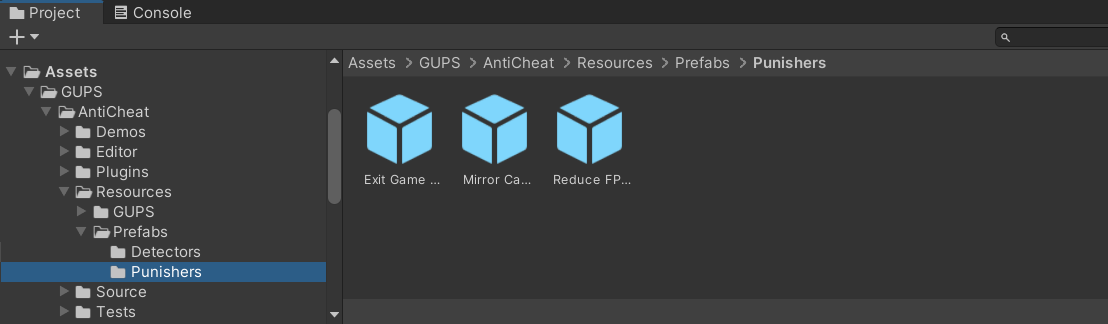
Built-in punisher prefabs.
Inspector. Add a function to On Cheating Detection Event. It runs when this detector finds a cheat.
Code.
var detector = AntiCheatMonitor.Instance
      .GetDetector<DebuggerDetector>();

detector.Subscribe(myObserver);
PossibleCheatingDetected stays true after the first find.